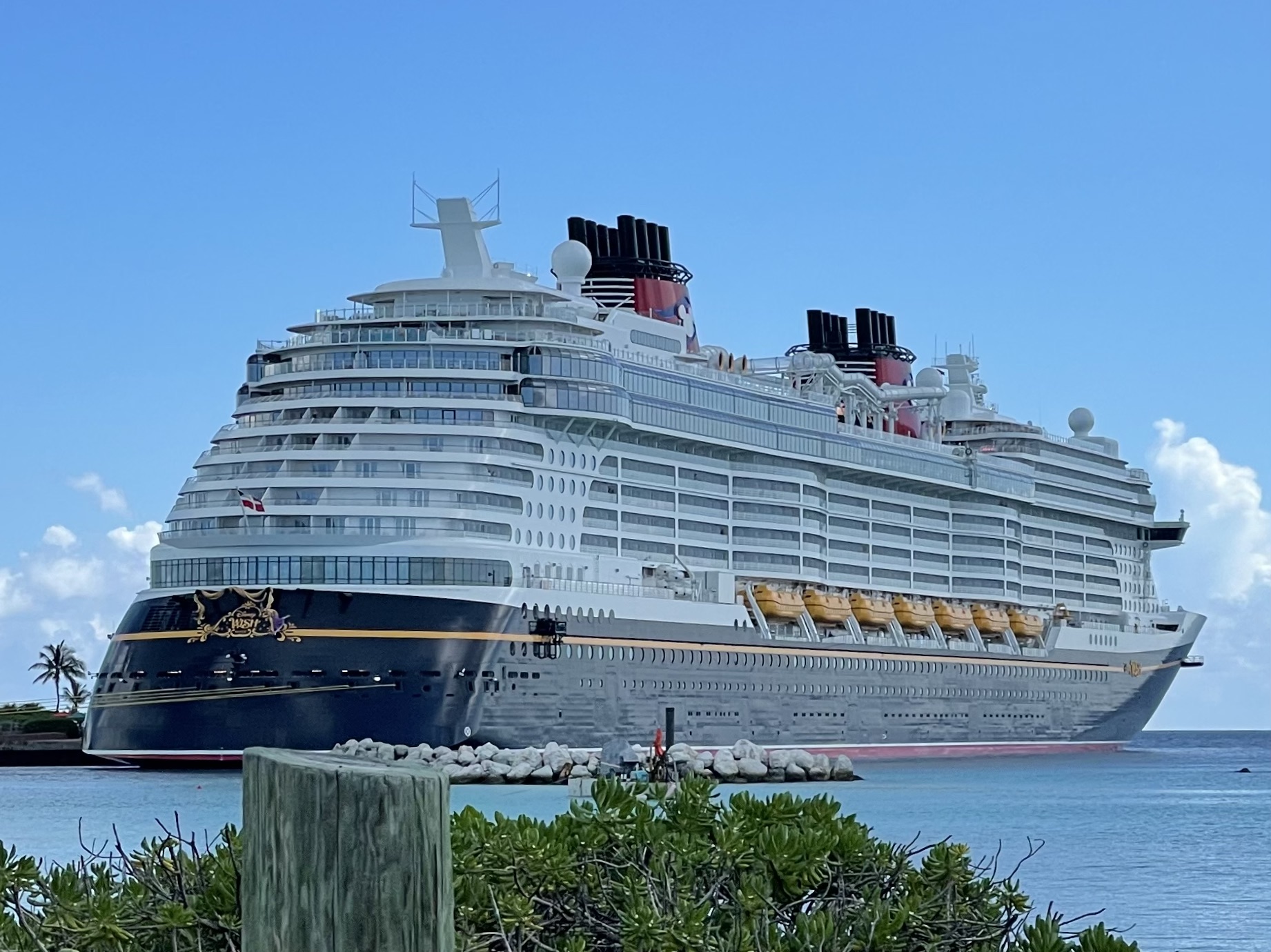

The short answer: the Disney Cruise Line Navigator app works on the ship’s Wi-Fi without a paid internet package. Buy internet only if you want to browse the web, use email or social media, make internet-based calls or stream video.
Set up your phone before sailing
Download or update the Disney Cruise Line Navigator app before departure, then sign in and link the cruise reservation. This avoids needing paid internet just to obtain the app after boarding.
Download shows, music, books, maps and travel documents before leaving home. Save anything important directly on the device. Satellite service can slow down or stop, and a cruise ship is a poor place to depend on a last-minute cloud download.
How to connect on board
- Turn Airplane Mode on to prevent cellular roaming.
- Turn Wi-Fi back on while leaving Airplane Mode enabled.
- Select the DCL-GUEST network.
- Open the Disney Cruise Line Navigator app.
That connection is free when used only for Navigator. A browser prompt or the app’s “Connect to Internet” option is for purchasing broader internet access.
What Navigator does without a paid package
Navigator is the shipboard planning tool. It includes daily activities, deck plans, menus and dining schedules, booked activity details, character information, onboard offers and chat with other guests in your travel party.
That is enough for many guests who want to follow the day’s schedule and message family members around the ship. You can use those app features without purchasing general internet access.
Choose an internet plan by what you need
| Option | Useful for | Main limit |
|---|---|---|
| Navigator only | Ship schedules, deck plans, dining information, booked plans and onboard chat | No general web, email, social media or outside messaging |
| Internet Package | Web browsing, email, social media and internet-based calls | Does not include YouTube or other long-form video streaming |
| Internet + Streaming | The standard internet uses plus YouTube and long-form video streaming | Satellite conditions can still interrupt or slow service |
Two paid options are available: Internet Package and Internet + Streaming. Prices, device rules and purchase terms can change, so review the current details shown onboard before paying.
How to buy internet
- Connect to DCL-GUEST.
- Open Navigator.
- Select Connect to Internet.
- Compare the current packages and terms, then choose only what the trip requires.
If your only needs are schedules, menus, activity details and onboard chat, stay with the complimentary Navigator connection.
Keep cellular roaming charges away
Shipboard cellular service is separate from Disney’s Wi-Fi plans, and billing depends on the mobile carrier. Keep Airplane Mode on unless you have confirmed the carrier’s cruise coverage and rates. You can leave Wi-Fi enabled while Airplane Mode is active.
A simple phone setup
Airplane Mode on. Wi-Fi on. DCL-GUEST selected. Navigator open. Leave cellular data and roaming off unless you have a carrier plan you intend to use.
Plan for satellite limits
Do not treat ship Wi-Fi like a home connection. Weather, the ship’s position and satellite coverage can affect it. A live meeting may work and then deteriorate. Large uploads can stall. If a work task matters, finish it before sailing or arrange a backup that does not depend on a particular connection window.
The streaming tier permits long-form video services, but that does not guarantee a specific speed or uninterrupted playback.
Troubleshooting steps
- Confirm that Airplane Mode is on and Wi-Fi is on.
- Forget and rejoin DCL-GUEST if the network appears connected but Navigator does not load.
- Close and reopen Navigator.
- If the internet purchase page will not appear, temporarily pause a VPN, Private Relay or strict content blocker, then restore it after setup.
- Ask Guest Services for help if the app, purchase page or paid connection still does not work.
Before-you-sail checklist
- Install or update Navigator.
- Sign in and link the reservation.
- Download entertainment and essential documents.
- Confirm any carrier cruise-roaming terms you plan to use.
- Tell everyone in the party how to join DCL-GUEST and use onboard chat.
- Decide whether the trip truly needs browsing or streaming.
Check current details: review Disney Cruise Line’s internet and phone service page and Navigator connection steps before departure. For more onboard planning, see our rotational dining guide and gratuities guide.
Quick answers
Is Disney Cruise Line Wi-Fi free?
Connecting is complimentary when the ship’s Wi-Fi is used only for Navigator. General internet access requires a paid package.
How do I connect?
Turn on Airplane Mode, turn Wi-Fi on, select DCL-GUEST and open Navigator.
What works free in Navigator?
Schedules, deck plans, dining information, booked activity details, offers, character information and onboard chat.
Which package includes streaming?
Internet + Streaming adds YouTube and other long-form video services. The standard package covers web, email, social media and internet-based calls.
Can I rely on ship Wi-Fi for live meetings?
No connection at sea is guaranteed. Satellite service may slow down or stop, so keep a backup plan for important work.