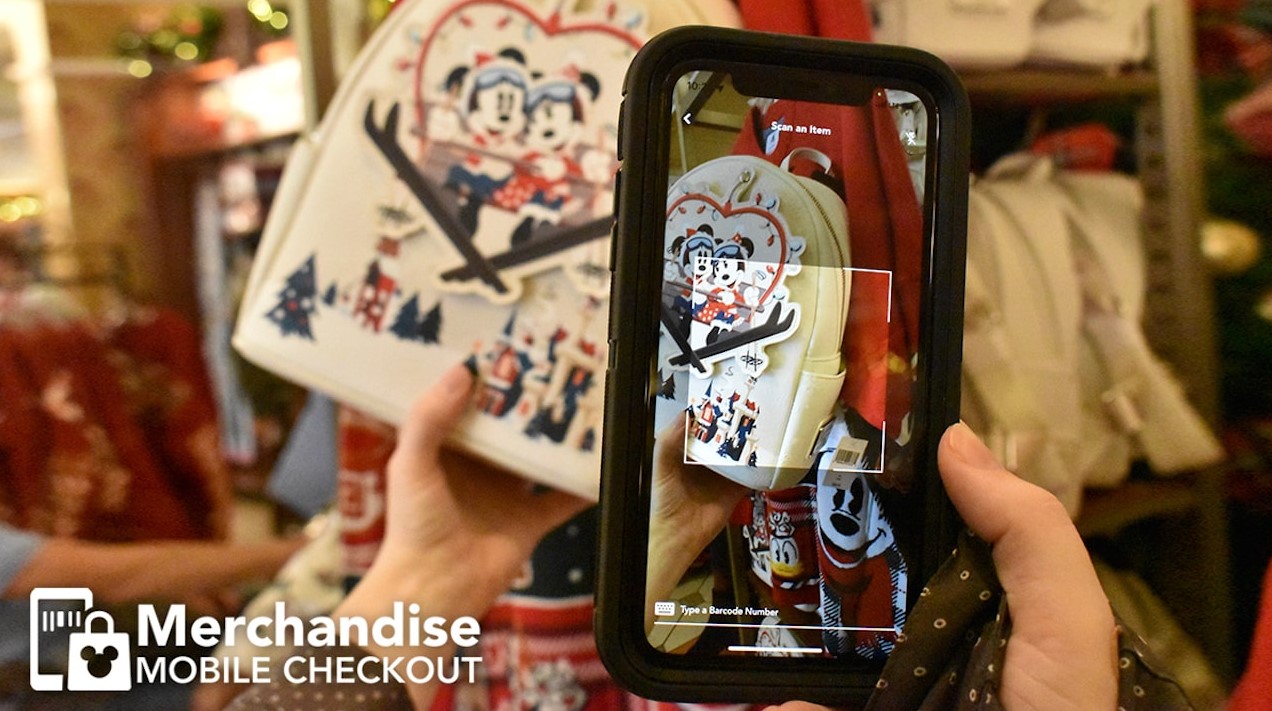
The short answer: Open merchandise checkout in the My Disney Experience app, choose the participating store, scan each item’s barcode and pay on your phone. You are not finished at the payment screen. Take the confirmation QR code and the items to the designated mobile checkout podium so a Cast Member can complete the exit check.
Set up before you start shopping
Merchandise mobile checkout works through the My Disney Experience app and requires a MyDisney account. Update the app before your park day, sign in, and add the payment method you expect to use. Doing that at the hotel is easier than recovering a password beside a rack of spirit jerseys.
The service is limited to participating stores. In the app, open the menu and select Merchandise Checkout. A Merchandise Mobile Checkout option also appears under the plus button, and the feature may appear on the home screen. Choose the actual store where you are standing before scanning anything.
Check the current participating locations
Open Disney World’s official merchandise mobile checkout page to review the current service and participating-location link. Store participation can change, so this guide does not freeze an old location list.
How to scan and pay for your items
- Open merchandise checkout. Use the My Disney Experience menu, the plus button or the home-screen prompt.
- Select the store. Confirm that the location in the app matches the shop around you.
- Scan each barcode. Add every item you intend to buy. Keep the physical items together as you go.
- Review the cart. Check the quantity and item list before payment. If something will not scan or looks wrong, ask a Cast Member before continuing.
- Select Purchase. Finish payment with an accepted method.
- Keep the confirmation open. Bring the QR code and all purchased items to the designated podium for the Cast Member check.
The feature handles merchandise you are carrying inside that store. It is separate from mobile food ordering, which places an order for pickup. Scanning a souvenir also does not mean you can pay later from elsewhere in the park.
Payment methods accepted in the app
Merchandise mobile checkout currently accepts five payment methods:
| Payment method | Useful detail |
|---|---|
| Credit card | Saving the card in the app before shopping reduces checkout steps. |
| Debit card | Review the final total before authorizing the purchase. |
| Disney Gift Card | Accepted for merchandise mobile checkout. |
| Disney Rewards Redemption Card | This can also be part of the Disney Visa discount requirements. |
| Apple Pay | Available as a listed mobile checkout payment method. |
If your preferred method is not shown in the checkout flow, stop before pressing Purchase and ask a Cast Member about using a staffed register. This guide does not assume that every payment combination can be split or stored in the app.
How eligible discounts work
Eligible Annual Passholder, Disney Vacation Club and Disney Visa Cardmember discounts can apply automatically during mobile checkout, but the setup differs.
- Annual Passholders: Link the eligible pass to the MyDisney account used in the app.
- Disney Vacation Club Members: Link the membership to the same MyDisney account.
- Disney Visa Cardmembers: Pay with a Disney Visa Card and/or Disney Rewards Redemption Card. Use the latest version of My Disney Experience.
“Eligible” matters. Mobile checkout does not turn every item or every account into a discounted purchase. Read the total before paying. If the expected discount is missing, ask a Cast Member rather than completing the sale and trying to solve it at the exit podium.
Payment is followed by a Cast Member exit check
After the purchase goes through, the app produces a confirmation QR code. Show that code to a Cast Member at the designated merchandise mobile checkout podium along with the items you bought. The Cast Member check is part of the process, even though the payment happened on your phone.
Keep all scanned items together and leave tags attached until the check is finished. Once the transaction is complete, the receipt arrives by email. Save it until you have checked the bag and confirmed that everything matches the purchase.
Do not close the confirmation too early
Leave the QR code on screen while walking to the podium. If the screen will not load, ask the Cast Member at the podium for help before leaving.
When a staffed register is the better choice
Mobile checkout is useful when the app, barcode and payment all cooperate. A register is the simpler route when an item will not scan, the quantity or price looks wrong, an expected eligible discount does not appear, the purchase needs help from a Cast Member, or the app fails before payment.
Do not force a questionable cart through just because you have already scanned several items. The exit podium confirms a completed mobile purchase; it is not the best place to rebuild a transaction that never worked.
What to know about returns
Purchases made through merchandise mobile checkout follow Walt Disney World’s standard return policy and procedures. Keep the emailed receipt and the item packaging. Because return eligibility depends on the item and current policy, this guide does not promise a fixed return period or assume every purchase can be handled the same way.
For a return question that could affect whether you buy, ask a Cast Member at the store before checking out.
Quick answers
Where is merchandise mobile checkout in My Disney Experience?
Open the menu and choose Merchandise Checkout, use the plus button and choose Merchandise Mobile Checkout, or open the feature from the app’s home screen when it appears there.
Do you still show your purchase to a Cast Member?
Yes. Show the confirmation QR code and the purchased items at the designated merchandise mobile checkout podium before leaving.
Can you pay with a Disney Gift Card?
Yes. Disney Gift Cards work with merchandise mobile checkout.
Which other payment methods work?
Credit cards, debit cards, Disney Rewards Redemption Cards and Apple Pay also work.
Will an Annual Pass, DVC or Disney Visa discount apply?
An eligible discount can apply automatically. Annual Passholders and Disney Vacation Club Members need the pass or membership linked to the MyDisney account. Disney Visa Cardmembers must use a Disney Visa Card and/or Disney Rewards Redemption Card and the current app.
Does mobile checkout work at every Disney World store?
No. It is available at participating locations. Choose a store shown in the app or use Disney’s current participating-location link rather than relying on outdated participating-location information.